


Guide: Zotero – Reference manager

Zotero is a reference manager that allows you to insert citations and automatically generate the bibliography in Word. Its main features include:
- Saving and organising your reading documents.
- Highlighting and adding annotations to PDFs.
- Inserting citations and generating bibliographies in Word.
- Changing the citation style and updating it with a single click.
- Go to the Zotero login page and click on Register for a free account.
- Enter your IQS email address with the extension @iqs.url.edu or another email address to which you wish to link your account.
- Confirm your account from the verification email you will receive in your inbox [If you do not see it, check your spam or junk mail folder].
- Download Zotero to your computer and Zotero Connector to the browsers you usually use.
Upload your documents
Zotero allows you to save documents in several ways:
- Automatically by clicking on the Zotero Connect extension when you are within the record of the document you want to save in databases such as Web of Science, Scopus, or PubMed.
- Automatically through identifiers such as URL, ISBNs, DOIs, PMIDs, arXiv IDs.
- Automatically through the document’s PDF, RIS, or BibTex file.
- Manually by filling in each of the fields.
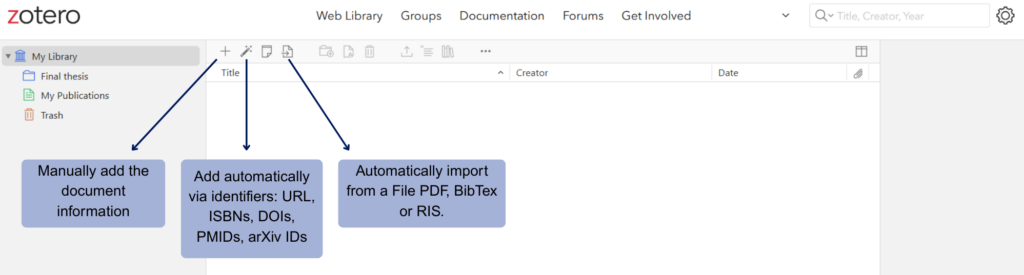
More information in: Adding items to Zotero Attaching files
Organise the documents found
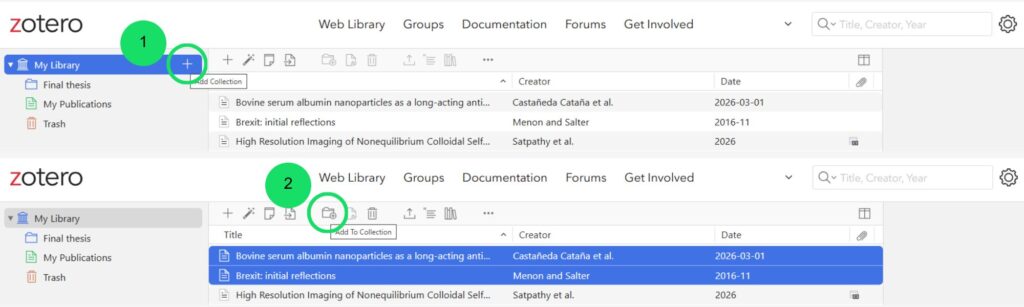
Zotero allows you to organise your references into collections and sub-collections. To create one, click on the + Add collection button. Then select the references you want and add them to the collection with Add to Collection or drag them to the corresponding folder.
Add Zotero Plugin on your text editor:
Zotero Word Plugin Zotero Google Docs Zotero LibreOffice Plugin
Zotero in Word
Choose the citation style
- Go to the Zotero tab and click Add/Edit Citation. As this is the first citation you are inserting, you will be asked which style you want.
- Choose from the styles. If you cannot find the one you want, look for it in the Manage the styles option.
- Once you have added citations, you can change the style you initially selected from Document preferences.
Add citations
- Go to the Zotero tab and click Add/Edit Citation.
- Search for the document you wish to cite in the search box and press Enter.
Add the bibliography
- Go to the Zotero tab and click Add/Edit Bibliography.
- It is recommended that you insert the bibliography when you have finished writing. If you add or remove a citation after inserting the bibliography, click Refresh to update the bibliography again.
Double-check the final result
Once you have included the citations and references in your work, check the final result using the citation style guides produced by the IQS Library.