


Guide: Mendeley – Reference manager

Mendeley is a reference manager that allows you to insert citations and automatically generate the bibliography in Word. Its main features include:
- Saving and organizing your reading documents.
- Highlighting and adding annotations to PDFs.
- Inserting citations and generating bibliographies in Word.
- Changing the citation style and updating it with a single click.
- Go to the Mendeley website and click Sign in at the top right.
- Enter your IQS email address with the extension @iqs.url.edu.
- Go through the institutional authentication process. [If the institution that appears is Esade instead of IQS, don’t worry, it works the same way].
- Once you have registered, you can access Mendeley on the web or by downloading the application. Both offer the same features and interface.
Upload your documents
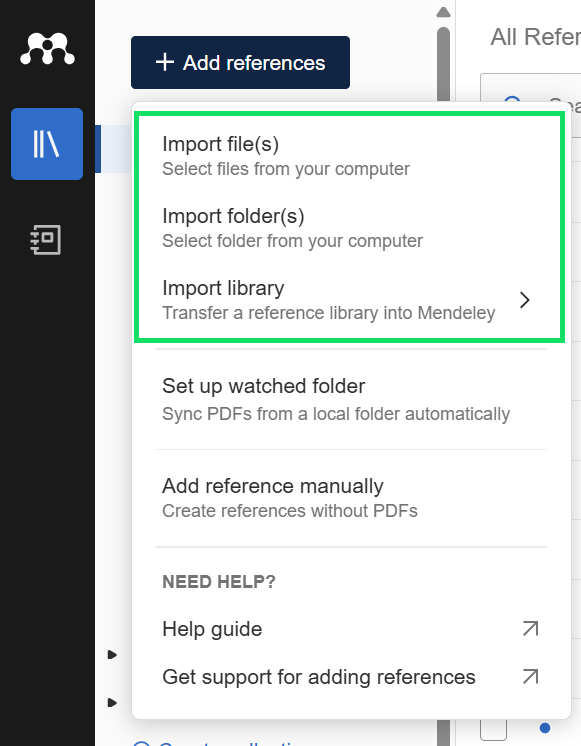
Mendeley allows you to save documents in several ways, using the + Add references option:
- The PDF file of the document.
→ Using the Import file(s) or Import folder(s) option, if you have a folder with all the documents you want to upload. - Exporting the document in RIS, .xml, or BibTex format. These options are usually found on database platforms and scientific journal websites, under the export or Mendeley option.
→ Using the Import library option.
Organise your documents
Mendeley allows you to organise your references into collections and sub-collections. To create one, click on the + Create collection button. Then you can select the references you want and add them to the collection with Add to Collection or drag them to the corresponding folder.
Add Mendeley Cite to Word to insert citations and automatically generate your bibliography in the citation style of your choice. You can change the style with a single click and keep your bibliography up to date at all times: references are automatically added or removed as you insert or delete citations in the text.
- Open your Word document and go to the References tab. On the right, click Mendeley Cite.
- In the new panel on the right, click Get started. Select the IQS institution and log in with your institutional credentials.
Choose the citation style
- Go to the Citation Settings tab and click Change citation style.
- Choose from the styles. If you cannot find the one you want, search for it using the Search for another style option.
Add citations
- In the References tab of Mendeley Cite, select the document or documents you want to cite and click Insert citation.
Add the bibliography
- Go to the three dots (…) in the top right corner of Mendeley Cite in Insert Bibliography.
- You can insert a manual or automatic bibliography. The manual option (switch to manual updates) is useful if you have many citations in your work, as it helps improve Mendeley’s speed. The bibliography should be inserted once the document has been finalised. In contrast, an automatic bibliography (keep live updates) will update the list of references as you delete or add citations in the document.
Double-check the final result
Once you have included the citations and references in your work, double-check the final result using the citation style guides developed by the IQS Library.